
Blog/Social media & mental health/Explainer
Instagram Time Limit: How to Set One That Actually Holds
Instagram's Daily limit is a reminder, not a lock. Here's how to set it, how to cap Instagram with Screen Time, and how to make a limit stick.

In this article
To set a time limit on Instagram, go to your profile, tap the menu in the top right, tap Time management under How you use Instagram, then tap Daily limit and choose an amount of time [1]. It takes about thirty seconds.
Before you count on it, read how Instagram describes it: a reminder "to let you know when you've spent a certain amount of time on Instagram throughout the day" [1]. A reminder, not a lock. Here's how to set it up anyway, how to make your iPhone enforce a limit, what the research says about capping social media, and how to build a limit that still holds at 11 p.m.
How to set a daily time limit on Instagram
These are Instagram's steps for iPhone [1]:
- Tap your profile picture in the bottom right to go to your profile.
- Tap the menu in the top right.
- Below How you use Instagram, tap Time management.
- Tap Daily limit.
- Choose an amount of time, then tap the back arrow in the top left.
To change the limit later, take the same path and choose a new amount [1]. Instagram's Help Center explains how to set and change it, but as of November 2026 it doesn't spell out what the reminder looks like or how to remove the limit.
Two things are worth knowing before you pick a number:
- It covers all of Instagram. The Help Center documents one daily limit for the whole app and no separate setting for Reels. Your time counts from the moment you open Instagram until you close it or switch to another app [2], whether you spend it in Reels, your feed or your messages.
- It works only if you obey it. The reminder tells you your time is up. Closing the app is still your job, at the exact moment you least want to do it.
If Instagram feels harder to put down than your other apps, our guide to Instagram addiction explains how Reels and likes are built to keep you there.
Check your real number first
The same Time management screen shows your average time on Instagram over the last seven days [2]. Look at it before you choose a limit, and start a little below it. A limit far under your real average is one you'll quickly learn to ignore; a limit you keep can come down later.
Sleep mode for the late scroll
If your Instagram time piles up at night, Sleep mode is the other setting in Time management. During the days and times you choose, it pauses Instagram's notifications, auto-replies to messages and shows you a reminder to close the app [3]. To turn it on, tap Time management, then Sleep mode, turn on the toggle and pick your hours, up to 24 a day [3].
It's another reminder: for most people, Instagram says, you can still use the app and send and receive messages in sleep mode [3]. Our guide to revenge bedtime procrastination explains why the night scroll is the hardest one to stop.
Why a reminder is so easy to ignore
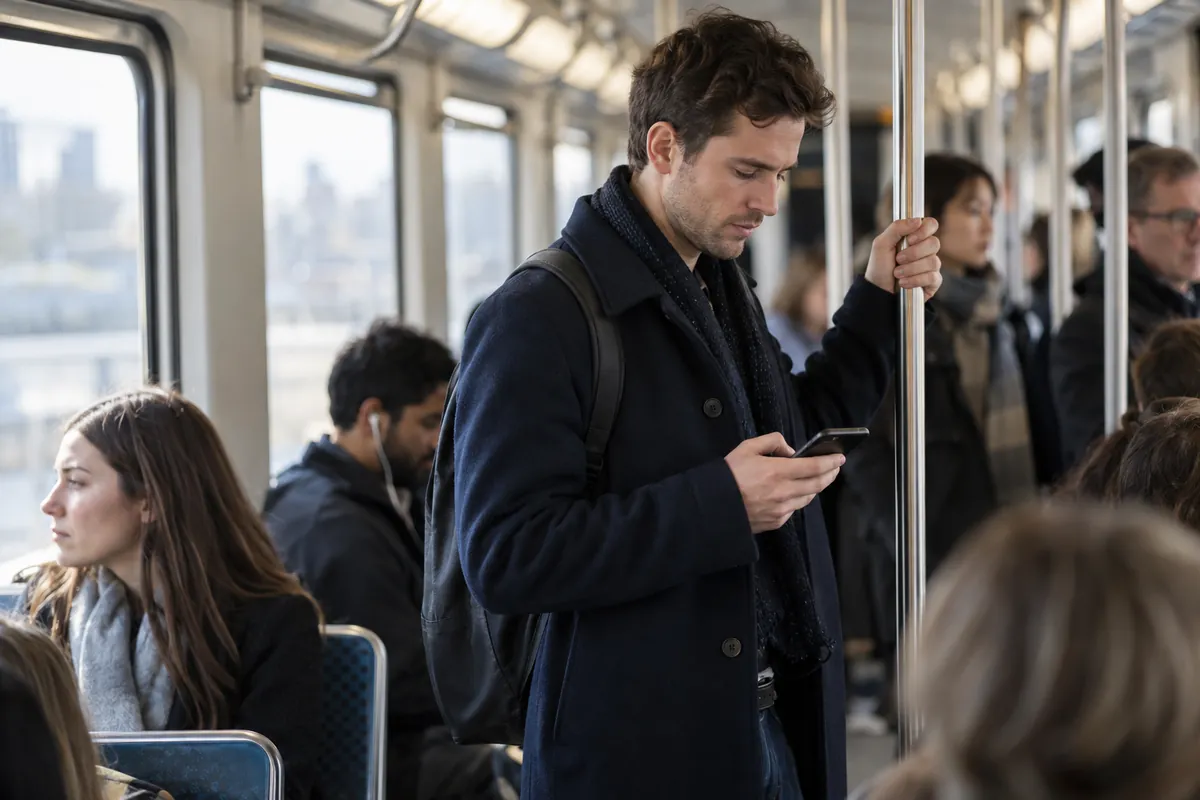
A limit set in the afternoon is a promise your calm self makes for your tired self. The reminder arrives when that promise is hardest to keep: mid-Reel, thumb moving, the next video already playing. You have to decide all over again, and the feed is very good at winning that decision.
The research on limits points the same way. The ones that work tend to stop you, not just tell you:
- A nudge that won't let up. In a three-week experiment with 50 people, a phone vibrated gently every five seconds whenever someone kept using Facebook past their daily limit, and stopped once they left the app. Their daily use fell by more than 20%, though the drop didn't last once the vibrations were removed [4].
- Self-set limits, slowly. In a preregistered field experiment with 112 people, those who committed themselves to time limits cut their screen time less, and more gradually, than those who simply turned their screens gray [5].
- Limits that lock. In a randomized experiment with about 2,000 American adults, people given a tool to set daily limits on Facebook, Instagram, Twitter, Snapchat, their browsers and YouTube used those apps 22 minutes a day less (16%) over 12 weeks. With no reward for doing it, 78% set limits and kept using them to the end [6]. Unlike the flexible limits built into phones, the authors note, theirs stopped people using the app and in most cases couldn't be overridden on the spot [6].
A reminder asks you to decide again at the moment you're least likely to. A limit that holds has already decided.
Does limiting Instagram actually help?
The trials that capped social media or phone use found real but modest gains, and once a cap ended, the old use crept back:
- Ten minutes per app. In a three-week trial, 143 students at the University of Pennsylvania were randomly assigned to keep Facebook, Instagram and Snapchat to 10 minutes each a day, or to use them as usual. The capped group grew less lonely and less depressed than the group that changed nothing [7]. It's one small study of students, and the authors suggest that keeping social media to about 30 minutes a day may lead to a real improvement in well-being [7].
- Two hours of phone a day. In a 2025 trial, 111 healthy students were randomly assigned to keep their smartphone use to two hours a day or less for three weeks, or to carry on as usual. The capped group's well-being, depressive symptoms, sleep quality and stress improved compared with the others, with small to medium effects. Once the three weeks were over, their screen time climbed back toward where it started [8].
So a limit helps while it holds. That's why the one you'll keep for months matters more than a three-week challenge.
How to limit Instagram with Screen Time on iPhone
Your iPhone can put its own limit on Instagram, and the steps depend on your version of iOS.
On iOS 26 and earlier: App Limits
- Open the Settings app and tap Screen Time.
- Tap App Limits, then tap Add Limit.
- Tap a category to see the apps in it, then select Instagram.
- Tap Next, then set the amount of time. To give each day its own limit, tap Customize Days [9].
Apple is candid about the catch: "By default, Screen Time limits can be ignored once reached" [9]. Its guide says a Screen Time passcode with Block at Downtime turned on keeps limits from being ignored [9]. The weak spot is obvious: if you set the passcode, you know it. Our guide to locking apps on iPhone covers the ways around that, like letting someone you trust choose it.
On iOS 27: Time Allowances
Open Settings, tap Screen Time, then Time Allowances, tap a category and drag its slider [10]. Allowances work for categories such as Entertainment, Games and Social Media, plus a daily total for the device, and they need iOS 27 or later on all your Apple devices [10]. Apple's guide describes allowances for whole categories, not for a single app, so capping Instagram this way caps the other apps in its category too.
How to make an Instagram limit hold
- Start from your real number. Set the limit below your seven-day average in Time management [2], and lower it once it holds.
- Decide while you're calm. Pick the number in the morning, not at 11 p.m. In the large experiment above, people set limits for the days ahead, and any change took effect only the next day [6].
- Mute what pulls you back. Every like and message notification invites you to reopen the app. Our guide to turning off notifications on iPhone shows how to keep only the ones that matter.
- Give each scroll an end. Reels never run out, so a session ends only when you end it.
- Use a limit with no ignore button. That's the part a reminder can't do.
Unrotten gives Instagram a limit that doesn't ask twice. You choose your rot apps, Instagram and any others that eat your evenings, through Apple's Screen Time, which hands them to Unrotten as private tokens, so it never learns which apps you picked. Less scrolling sets a daily limit for them. Once it's used up, Apple's Screen Time shield locks those apps until your day resets, and unlike Screen Time's own limits, the shield has no "ignore limit" button: it closes the app. A limit you raise mid-day only counts from tomorrow, so there's nothing to bargain with at midnight.
Shorter scroll sessions gives your scrolling the ending Reels never will: past the session length you pick, the apps take a break before they open again. Fewer app returns sets a daily target for how often you open them, which fits a check-for-likes habit better than a timer does. You can still turn a goal off, so it's a commitment device, not a lock nobody can open. And Unrotten's Coach checks in on the plans you share with it and nudges you when your scrolling runs fast.
Set it once, while you're calm
Instagram's Daily limit is worth the thirty seconds it takes: it tells you when you've had your time. Just don't mistake it for a lock. Pick your number from your real average, choose it while you're calm, and back it with a limit that holds on the nights you'd rather it didn't, whether that's a Screen Time passcode someone else keeps or a daily limit in Unrotten.
Questions people ask
How do I set a time limit on Instagram?
On iPhone, tap your profile picture in the bottom right, tap the menu in the top right, then below How you use Instagram tap Time management. Tap Daily limit, choose an amount of time and tap the back arrow in the top left. To change it later, take the same path and pick a new amount.
What happens when you reach your Instagram daily limit?
Instagram describes its Daily limit as a reminder that lets you know when you've spent the time you chose. Its Help Center doesn't say the app locks or closes. If you want Instagram to actually stop, use a Screen Time limit with a passcode or an app that locks Instagram once your time is used up.
Can you set a time limit for Instagram Reels only?
Instagram's Help Center documents one daily limit for the whole app and no separate setting for Reels. Your time counts from the moment you open Instagram until you close it or switch to another app. To give a scroll an end, use a session limit, such as Unrotten's Shorter scroll sessions, which sends the apps on a break once a session runs past the length you pick.
How do I limit Instagram with Screen Time on iPhone?
On iOS 26 and earlier, open Settings, tap Screen Time, then App Limits and Add Limit, tap a category to see its apps, select Instagram, tap Next and set the time. On iOS 27, Time Allowances are set for categories such as Social Media rather than for one app. Apple's iOS 26 guide notes that by default, Screen Time limits can be ignored once reached.
What's a good daily time limit for Instagram?
There's no official number. In a three-week trial, students who kept Facebook, Instagram and Snapchat to 10 minutes each a day grew less lonely and less depressed than students who didn't, and the authors suggest that about 30 minutes of social media a day may improve well-being. Start below your own average, which Instagram shows in Time management, and lower it once the limit holds.
References
- Instagram. "Set a daily time limit on Instagram." Instagram Help Center. Accessed November 15, 2026. help.instagram.com ↩
- Instagram. "See how much time you've spent on Instagram." Instagram Help Center. Accessed November 15, 2026. help.instagram.com ↩
- Instagram. "Turn sleep mode on or off on Instagram." Instagram Help Center. Accessed November 15, 2026. help.instagram.com ↩
- Okeke F, Sobolev M, Dell N, Estrin D. "Good vibrations: can a digital nudge reduce digital overload?" Proceedings of the 20th International Conference on Human-Computer Interaction with Mobile Devices and Services. 2018:1-12. doi:10.1145/3229434.3229463 ↩
- Zimmermann L, Sobolev M. "Digital Strategies for Screen Time Reduction: A Randomized Field Experiment." Cyberpsychology, Behavior, and Social Networking. 2023;26(1):42-49. doi:10.1089/cyber.2022.0027 ↩
- Allcott H, Gentzkow M, Song L. "Digital Addiction." American Economic Review. 2022;112(7):2424-2463. doi:10.1257/aer.20210867 ↩
- Hunt MG, Marx R, Lipson C, Young J. "No More FOMO: Limiting Social Media Decreases Loneliness and Depression." Journal of Social and Clinical Psychology. 2018;37(10):751-768. doi:10.1521/jscp.2018.37.10.751 · Read our plain-English summary ↩
- Pieh C, Humer E, Hoenigl A, Schwab J, Mayerhofer D, Dale R, et al. "Smartphone screen time reduction improves mental health: a randomized controlled trial." BMC Medicine. 2025;23(1):107. doi:10.1186/s12916-025-03944-z · Read our plain-English summary ↩
- Apple. "Set schedules with Screen Time on iPhone." iPhone User Guide, iOS 26. Accessed November 15, 2026. support.apple.com ↩
- Apple. "Set Screen Time Schedules and Time Allowances in Screen Time on iPhone." iPhone User Guide, iOS 27. Accessed November 15, 2026. support.apple.com ↩
Written by
Maren AshbyCOO, Unrotten
Maren Ashby is the COO of Unrotten, the iPhone app that helps people take their attention back from the feed. She writes about the research on phones, sleep and focus, and about the small, practical changes that make a phone easier to put down.