

Blog/Screen time for adults/Explainer
Focus Mode on iPhone: How to Set It Up So It Actually Helps
A step-by-step guide for iOS 27: which Focus to make, who to let through, how to schedule it, and the one thing Focus can't do for you.


In this article
Every buzz on your phone is a small request for your attention, and an iPhone can collect dozens of them a day. Focus is Apple's built-in answer: it decides which people and apps get through while you work, rest or sleep. Set up with care, it's the cheapest way to get some of your attention back. Left on its defaults, it's an icon you forget about.
Here's how to set it up on iOS 27, the setups worth making, why a Focus sometimes turns on by itself, and the one thing it can't do.
What Focus mode does, and what it doesn't
Apple describes Focus as "a feature that helps you concentrate on a task by minimizing distractions," which you can use to "temporarily silence all notifications, or allow only specific notifications" [1]. Your iPhone comes with ready-made options such as Do Not Disturb, Personal, Work and Sleep, and you can create your own. On an iPhone 15 Pro, iPhone 15 Pro Max or iPhone 16 or later, where Apple Intelligence is available, a Reduce Interruptions Focus shows only the notifications it judges most important [1].
A Focus can:
- allow or silence notifications from specific people and apps [2];
- switch to a Lock Screen or Home Screen page you choose, "to help limit distractions" [1];
- filter what some apps show, such as which calendar or mail account appears [1];
- turn on by itself at set times, at a place, or when you open a certain app [3];
- show people who message you that you have notifications silenced, while still letting them notify you if something is urgent [3].
What it doesn't do is stop you from opening an app. Apple's guide describes Focus entirely in terms of notifications, screens and filters, and nothing in it locks an app [1]. That matters, and we'll come back to it.
Why taming notifications is worth the effort
A notification costs attention even when you ignore it. In a lab study, getting phone notifications during a demanding task "significantly disrupted performance," even when people didn't touch their phones, and the distraction was comparable to that of people who took a call or answered a text [4].
Over a week, it adds up. In a study that recruited 221 people, each spent one week with alerts on and the phone within reach, and another with alerts off and the phone away. With alerts on, they reported more inattention and hyperactivity, and more inattention went with lower productivity and well-being [5].
Silencing everything isn't the answer either. When 30 volunteers turned off notification alerts on all their devices for 24 hours, they felt less distracted and more productive, but some grew anxious about being less responsive, and they felt less connected to their social group [6]. In a larger field experiment, people whose notifications were batched three times a day felt more attentive, productive and in control of their phones, and in a better mood, than people who got them as usual. Those who got no notifications at all reaped few of those benefits and reported more anxiety and fear of missing out [7].
So the aim is a filter, not a wall.
A good Focus lets the right people in instead of shutting everyone out.
How to set up a Focus on iPhone
These steps are for iOS 27. On iOS 26 the Focus menus are the same; only the Health app's sleep screens differ.
- Pick a Focus. Open the Settings app, tap Focus, then tap a Focus such as Do Not Disturb, Personal or Work. To make your own, tap the add button, then Custom, and give it a name, a color and an icon [1].
- Choose your people. Tap People, then Allow Notifications From, and add the people who should always reach you. You can also allow calls from certain groups and allow repeated calls, so a second call from the same person within 3 minutes rings through [2].
- Choose your apps. Tap Apps and allow only the apps this Focus is for. Apple also offers Time Sensitive Notifications, which "allows all apps to send time-sensitive notifications immediately" [2]. Leave it off unless you rely on those alerts.
- Set the options. Tap Options to choose whether silenced notifications still show on the Lock Screen and whether the Lock Screen darkens while the Focus is on [1].
- Pick a screen. Choose a Lock Screen or Home Screen page to switch to while the Focus is on [1]. A Home Screen page with only the apps this Focus is for is the most underrated setting in the whole menu.
- Schedule it. Tap Add Schedule and choose times, a location or an app that turns the Focus on [3].
- Fine tune it. Tap Add Filter to choose, for example, which calendar or mail account shows during the Focus [1]. On iPhones with Apple Intelligence, Intelligent Breakthrough & Silencing lets important notifications interrupt you, and anything you specifically allowed or silenced stays that way [1].
To turn a Focus on by hand, open Control Center, tap Focus, then tap the Focus you want. You can also choose when it ends, such as "For 1 hour" or "Until I leave this location" [3].
Then try a working morning with it. If you still find yourself opening a feed without a single buzz to prompt you, notifications were never the whole problem.
The Focus setups worth making
Work: one screen, a few people
Allow your manager and the two or three people you work with most, plus your calendar and work chat. Pair it with a Home Screen page that holds only work apps, and schedule it for your best hours, such as weekdays from 9 to 12 [1, 3]. If your thumb still finds the feed during a Work Focus, a phone-free session in Unrotten locks the apps you choose until the session ends, with a countdown on the Lock Screen and in the Dynamic Island. Our guide to the best focus apps for iPhone compares the timers and blockers that go further than Focus.
Personal: evenings that belong to people
A Personal Focus can do the opposite of Work: silence work email and chat after hours and let family and close friends through. Schedule it from the time you usually stop working. If you turn on Share Focus Status (Settings, then Focus, then Focus Status), people who message you may see that you have notifications silenced [2].

Sleep: a wind down that starts on its own
The Sleep Focus follows the sleep schedule you set in the Health app [3]. In iOS 27, open Health, tap Browse, then Sleep, then Sleep again, tap Get Started, and set your sleep goal and schedule [8]. You can add a wind down that begins anywhere from 15 minutes to 3 hours before bedtime, and your Sleep Focus starts with it [8]. Then go to Settings, tap Focus, then Sleep, and choose who can still reach you at night [8].
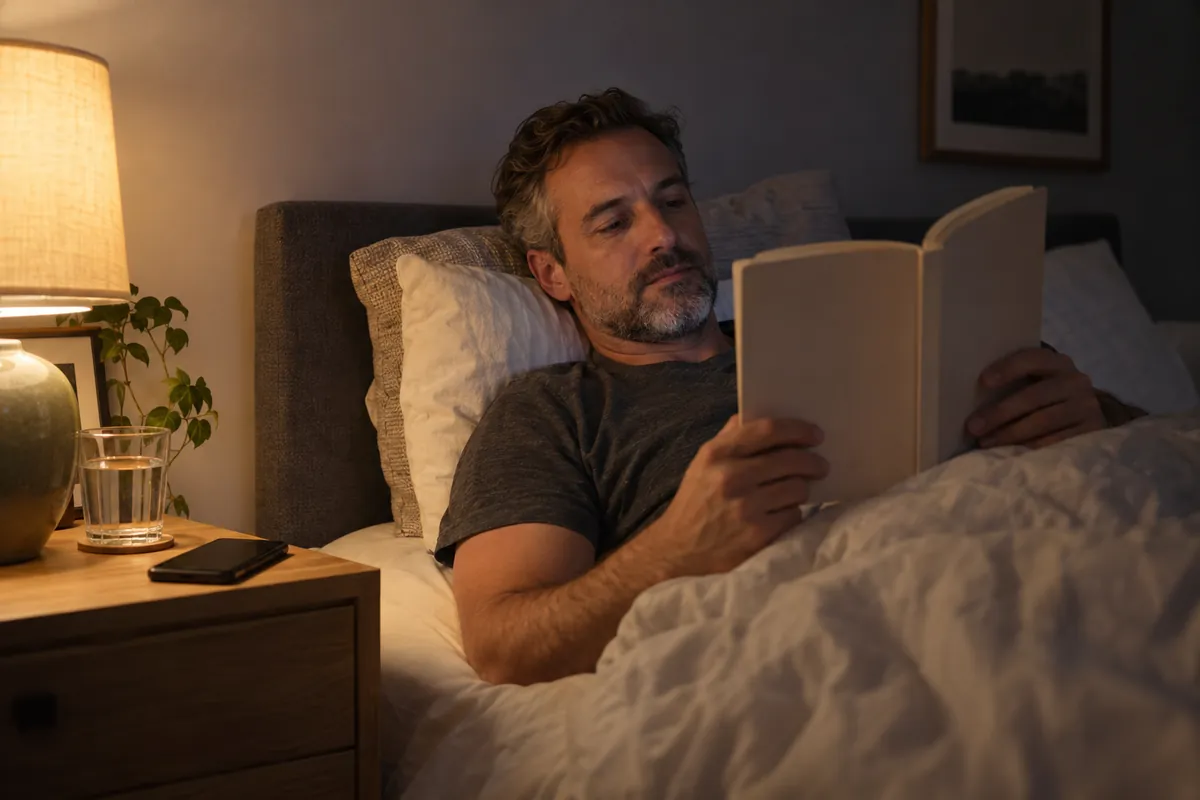
A silent phone on the nightstand can still pull you in, though. If the problem is the scrolling itself, not the buzzing, read about revenge bedtime procrastination.
Driving: on by itself in the car
The Driving Focus can turn on when your iPhone detects you might be driving, when it connects to your car's Bluetooth or with CarPlay, and it can send an auto-reply to people who message you [9]. Apple is clear that it "is not a substitute for following all the rules that prohibit distracted driving" [9].
Why Focus turns on by itself, and how to turn it off
If a Focus keeps switching on when you didn't ask, one of these is usually the reason:
- A schedule: a time, a place or an app you open [3].
- Your sleep schedule, which turns on the Sleep Focus [3].
- Driving detection, which turns on the Driving Focus [9].
- Another device. With Share Across Devices on, your Focus settings are the same on all your Apple devices signed in to the same Apple Account, so check them there too [1].
To turn a Focus off, touch and hold the Focus icon on the Lock Screen, or open Control Center, tap Focus, then tap the Focus that's on [3]. To keep your sleep schedule but stop it from switching on the Sleep Focus, open Health, tap Browse, then Sleep, tap Sleep again, open Full Schedule & Options and turn off Use Schedule for Sleep Focus [10].
When a quiet phone still pulls you in
Focus filters what reaches you. It does nothing about the reach that starts with you: the thumb that opens a feed in the elevator, at a red light or halfway through a sentence.
Focus decides what reaches you. It can't decide what you reach for.
Screen Time can add limits, as our guide to locking apps on iPhone explains, but Apple's own limits come with a button to ignore them. Unrotten covers the part Focus leaves out: its shields have no "ignore limit" button, the Focus on what matters goal protects a window each day without the apps you choose, and a daily limit locks them once your minutes are used up, until the day resets.
Start with one Focus tonight, for the hours you most want back, and let it run for a week before you change anything.
Questions people ask
What does Focus mode do on iPhone?
Focus lets you silence notifications, or allow only the people and apps you choose, while you work, spend time with people, sleep or drive. A Focus can also switch to a Lock Screen or Home Screen page you pick, filter what some apps show, turn on by itself on a schedule, and tell people who message you that you have notifications silenced.
Does Focus mode block apps on iPhone?
No. Apple's iPhone User Guide describes Focus as a way to silence or allow notifications, switch Lock Screen and Home Screen pages and filter what apps show. It doesn't describe any way to stop you opening an app. To lock apps, you need Screen Time limits or an app built on Screen Time.
Why does my iPhone keep turning on Focus by itself?
Usually because of a schedule (a time, a place or an app you open), a Sleep Focus that follows your sleep schedule in the Health app, or a Driving Focus set to turn on when your iPhone detects you might be driving. Open Settings, tap Focus, then the Focus that keeps appearing, and check its schedule.
How do I turn off Focus on iPhone?
Touch and hold the Focus icon on the Lock Screen, or open Control Center, tap Focus, then tap the Focus that's on. To stop the Sleep Focus from turning on with your sleep schedule, open Health, tap Browse, then Sleep, tap Sleep again, open Full Schedule & Options and turn off Use Schedule for Sleep Focus.
Is Do Not Disturb the same as Focus?
Do Not Disturb is one of the Focus options that come with iPhone. Apple suggests it for silencing all notifications quickly, and like any Focus you can choose people and apps it still lets through.
References
- Apple. "Set up a Focus on iPhone." iPhone User Guide, iOS 27. Accessed November 11, 2026. support.apple.com ↩
- Apple. "Allow or silence notifications for a Focus on iPhone." iPhone User Guide, iOS 27. Accessed November 11, 2026. support.apple.com ↩
- Apple. "Turn on or schedule a Focus on iPhone." iPhone User Guide, iOS 27. Accessed November 11, 2026. support.apple.com ↩
- Stothart C, Mitchum A, Yehnert C. "The attentional cost of receiving a cell phone notification." Journal of Experimental Psychology: Human Perception and Performance. 2015;41(4):893-897. doi:10.1037/xhp0000100 · Read our plain-English summary ↩
- Kushlev K, Proulx J, Dunn EW. "'Silence Your Phones': Smartphone Notifications Increase Inattention and Hyperactivity Symptoms." Proceedings of the 2016 CHI Conference on Human Factors in Computing Systems. 2016:1011-1020. doi:10.1145/2858036.2858359 ↩
- Pielot M, Rello L. "Productive, anxious, lonely: 24 hours without push notifications." Proceedings of the 19th International Conference on Human-Computer Interaction with Mobile Devices and Services. 2017:1-11. doi:10.1145/3098279.3098526 ↩
- Fitz N, Kushlev K, Jagannathan R, Lewis T, Paliwal D, Ariely D. "Batching smartphone notifications can improve well-being." Computers in Human Behavior. 2019;101:84-94. doi:10.1016/j.chb.2019.07.016 · Read our plain-English summary ↩
- Apple. "Set up sleep in Health on iPhone." iPhone User Guide, iOS 27. Accessed November 11, 2026. support.apple.com ↩
- Apple. "Stay focused while driving with iPhone." iPhone User Guide, iOS 27. Accessed November 11, 2026. support.apple.com ↩
- Apple. "Turn your Sleep Focus on or off on iPhone." iPhone User Guide, iOS 27. Accessed November 11, 2026. support.apple.com ↩
Written by
Maren AshbyCOO, Unrotten
Maren Ashby is the COO of Unrotten, the iPhone app that helps people take their attention back from the feed. She writes about the research on phones, sleep and focus, and about the small, practical changes that make a phone easier to put down.