
Blog/Social media & mental health/Explainer
How to Disable Reels on Instagram (and What Works Instead)
Instagram has no off switch for Reels. How to see only the people you follow, reset what it suggests and give the scroll an end on iPhone.

In this article
Instagram has no switch that turns Reels off. Its Help Center documents no setting to hide the Reels tab, and it says reels turn up in Explore and in your feed as well [1]. What you can do is shrink them: watch only the people you follow, reset what Instagram suggests, and put an end on a scroll that Instagram will never end for you. Here are the steps on iPhone, checked in November 2026, and what each one really changes.
Can you turn off Reels on Instagram?
Not as of November 2026. Instagram's Help Center explains how to find and filter reels, but its pages on discovering them describe no way to turn them off or hide the tab [1, 2]. Instagram says you can find public and suggested reels "in places like the Reels tab, Explore, and in your feed," and it recommends them based on factors including the accounts you follow and the reels you've watched, liked or engaged with recently [1]. Even if the tab disappeared, reels would still find you.
Moving to the website doesn't leave them behind either: Instagram's instructions for computers send you to instagram.com and tell you to "Click Reels on the left" [2].
So the goal changes. Instead of deleting Reels, you make them smaller, and instead of fighting the urge in the moment, you let a few settings decide for you in advance. If you want the bigger picture of why Instagram is hard to close, from likes to vanishing Stories, our guide to Instagram addiction covers it.
Watch reels only from people you follow
The Reels tab has a Following filter. To use it on iPhone [2]:
- Open Instagram and tap Reels at the bottom.
- Tap Reels or For you in the top left.
- Tap Following.
Instagram then shows reels only from accounts you follow, from newest to oldest [2]. To go back, tap Following again. The difference is bigger than it looks. For you is picked from what you've watched and liked lately; Following comes only from people you chose, and it runs out.
Make your feed the Following view
Your home feed mixes suggested reels in too [1]. Its Following view shows posts from people you follow, "from newer posts at the top to older posts as you scroll down," which Instagram calls "a non-personalized experience" [3]. On iPhone, tap Instagram or For you at the top of your feed, then tap Following [3].
Use it as your way in. When you open Instagram to see what a friend posted, the Following view shows you that without the suggestions, and once you reach posts you've already seen, you've caught up.

Reset what Instagram suggests
If For you has learned exactly which videos keep you up at night, you can start it over. On iPhone [4]:
- Tap Profile or your profile picture in the bottom right.
- Tap Menu in the top right.
- Below What you see, tap Content preferences.
- Tap Reset suggested content.
- Tap Next and follow the instructions. You can review who you follow along the way.
- Tap Reset suggested content to finish.
Know what this does before you count on it. It doesn't remove Reels. It lets you "see posts, reels and other content about topics you may not normally see," it can't be undone, and your suggestions "will become more personalized again as you like, share and interact on Instagram" [4]. A reset gives you a feed that hasn't learned your weak spots yet. It doesn't stop it from learning them again.
Why Reels are so hard to put down
Reels have no last page. Every swipe brings a new video chosen from what you watched before, so there's never a natural place to stop, and the decision to put the phone down has to be made again and again, usually by the most tired version of you.
The research on short-form video, Reels included, points the same way. A 2025 meta-analysis pooled 71 studies with 98,299 people: heavier short-video use went with poorer attention (r = -0.38) and poorer inhibitory control, the ability to hold back an automatic response (r = -0.41) [5]. Those are moderate links, stronger for compulsive use than for plain time spent, and most of the studies were snapshots, so they can't show that the videos cause the problem [5]. In a survey of 745 social media users in Saudi Arabia, how much people watched predicted the trouble with attention, memory and mental fatigue they reported, but scrolling on autopilot (watching out of habit, without meaning to) predicted all three consistently [6]. It was one survey, with self-reports, but it fits what many people feel.
The trouble isn't any one reel. It's that the next one is already playing.
Taking the feed away can help. In a six-week field experiment, 58 university students were given one of three changes to Facebook: goal reminders, a removed News Feed, or a white background as the control. Both the reminders and the missing feed helped them stay on task and avoid distraction, though without the feed some feared missing out on information [7]. It was a small study of a different app, but it's the closest test of what people searching for "Instagram without Reels" want.
Apps that take Reels out
No app can delete Reels from inside the Instagram app itself. As SocialLite's own FAQ puts it, "iOS doesn't let any app change what happens inside another app, so Reels can't be removed from the native Instagram app." Its workaround is to open your accounts inside its own app, "using optimized versions that remove the addictive parts: algorithmic feeds, Reels, Shorts and endless recommendations," and to send you there when you open Instagram. If a friend sends you a video, its listing says, you can watch that one but can't scroll on to the next. Its FAQ lists standard US prices of $9.99 a month or $29.99 a year and says new sign-ups need a paid subscription, and the app holds 4.7 stars from about 18,700 ratings on the US App Store (checked November 2026). Your Instagram account then opens inside another company's app; SocialLite says you log in with Instagram directly and that it never sees your username or password, and its privacy policy has the rest.
ScreenZen, which is free and funded by optional tips, added a mode called Minimal in version 4.0. Its release notes describe it as a way to "use Instagram, YouTube, TikTok, Reddit and more without Reels, Shorts or endless feeds, with messages-only options." It holds 4.9 stars from about 54,400 US ratings (checked November 2026). Our comparison of apps to stop doomscrolling compares both with seven other apps on what they do once you're already scrolling.
Or put an end on the whole app
If the only part of Instagram you'd miss is your messages, a cap on the whole app may be simpler than any of this. Screen Time limits apps, not parts of apps, so it can cap Instagram but can't single out Reels. Instagram has a daily limit of its own, and our guide to Instagram's time limit has the steps and what happens when you reach it.
Limits you set ahead of time do work. In a randomized experiment, letting people set limits on their own future screen time substantially reduced their use, which the economists who ran it read as a sign of self-control problems; through their model, they estimated that self-control problems cause 31 percent of social media use [8]. The catch is the moment a limit arrives: mid-reel, thumb already moving, the next video playing.
Unrotten is built for that moment. Choose Instagram as one of your rot apps and turn on Shorter scroll sessions: you pick a session length, and past it, the apps take a break before they open again. Less scrolling adds a daily limit, and once it's used up, the apps lock until the day resets. The shield has no "ignore limit" button, though turning a goal off lifts it, so it's a commitment device rather than a lock nobody can open. Unrotten can't take Reels out of Instagram either. It makes the scroll stop.
Your first week with fewer Reels
Settings work best with a plan behind them. Across 642 tests, people who decided in advance when and how they would act followed through better, and the effect was larger when the plan took an if-then form [9]. Here's a week built that way:
- Day 1. Switch both Reels and your feed to Following, and reset your suggested content if For you knows you too well.
- Day 2. Write one if-then plan: "If I open Instagram to answer a message, then I close it once I've replied."
- Day 3. Move Instagram off your Home Screen and into a folder, so opening it takes a decision instead of a reflex.
- Day 4. Set a session length for your rot apps, so a scroll that starts also ends.
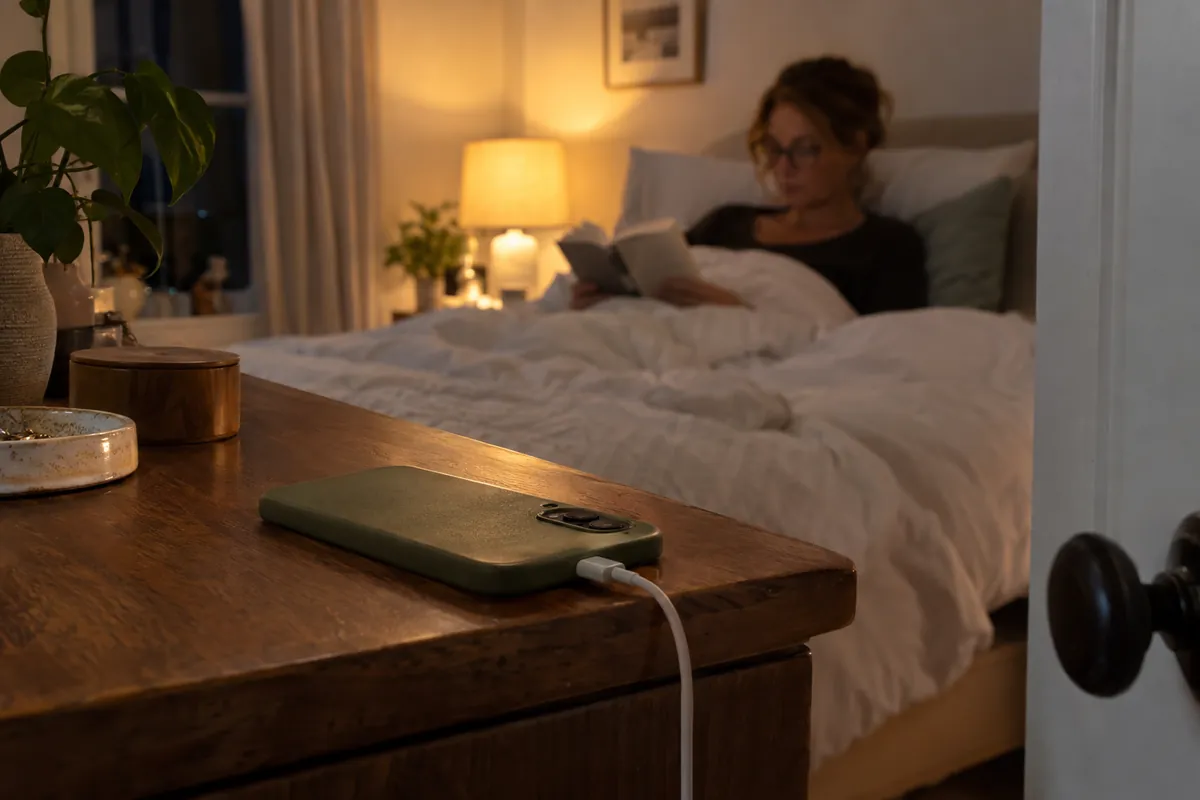
- Day 5. Charge your phone outside the bedroom, so the last reel isn't the last thing you see.
- Day 6. Give the time back to something that ends: a chapter of a book, a walk, a call with a friend.
- Day 7. Open Settings, then Screen Time, and look at your week on Instagram. Keep what worked.
If you'd like company along the way, Unrotten's Coach checks in on the plans you share with it and nudges you when scrolling runs fast. And if YouTube is your other endless feed, our guide to turning off YouTube Shorts covers its settings.
You don't need Instagram to fix itself. Following first, a reset when the feed knows you too well, and an end you chose in advance get you most of the way to an Instagram without Reels.
Questions people ask
Can you turn off Reels on Instagram?
No. As of November 2026, Instagram's Help Center documents no setting that turns Reels off or hides the Reels tab, and it says reels also appear in Explore and in your feed. The closest you can get is the Following view, which shows reels and posts only from accounts you follow, newest first.
How do I see reels only from people I follow?
In the Instagram app, tap Reels at the bottom, tap Reels or For you in the top left, then tap Following. Instagram then shows reels only from accounts you follow, from newest to oldest. Tap Following again to go back to For you.
Does resetting suggested content get rid of Reels?
No. Instagram says a reset lets you see posts, reels and other content about topics you may not normally see, that it can't be undone, and that your suggestions become personalized again as you like, share and interact. It changes what Reels shows you, not whether Reels is there.
Can Screen Time block Reels but keep Instagram?
No. Screen Time limits whole apps, not parts of them, so it can cap Instagram but can't single out Reels. To keep Instagram without Reels, some apps open your account inside their own app without them, such as SocialLite, or list a mode without them, such as ScreenZen's Minimal. Otherwise, limit the whole app.
References
- Instagram. "What kind of reels you may see on Instagram." Instagram Help Center. Accessed November 19, 2026. help.instagram.com ↩
- Instagram. "Find reels to watch on Instagram." Instagram Help Center. Accessed November 19, 2026. help.instagram.com ↩
- Instagram. "Only see posts and reels from people you follow on Instagram." Instagram Help Center. Accessed November 19, 2026. help.instagram.com ↩
- Instagram. "Reset your suggested content." Instagram Help Center. Accessed November 19, 2026. help.instagram.com ↩
- Nguyen L, Walters J, Paul S, et al. "Feeds, feelings, and focus: A systematic review and meta-analysis examining the cognitive and mental health correlates of short-form video use." Psychological Bulletin. 2025;151(9):1125-1146. doi:10.1037/bul0000498 · Read our plain-English summary ↩
- Alruwaili RF. "Scroll immersion and short-form video use: Predictors of attention, memory, and fatigue among Saudi social media users." Acta Psychologica. 2025;260:105674. doi:10.1016/j.actpsy.2025.105674 · Read our plain-English summary ↩
- Lyngs U, Lukoff K, Slovak P, et al. "'I Just Want to Hack Myself to Not Get Distracted': Evaluating Design Interventions for Self-Control on Facebook." Proceedings of the 2020 CHI Conference on Human Factors in Computing Systems. 2020:1-15. doi:10.1145/3313831.3376672 ↩
- Allcott H, Gentzkow M, Song L. "Digital Addiction." American Economic Review. 2022;112(7):2424-2463. doi:10.1257/aer.20210867 ↩
- Sheeran P, Listrom O, Gollwitzer PM. "The when and how of planning: Meta-analysis of the scope and components of implementation intentions in 642 tests." European Review of Social Psychology. 2025;36(1):162-194. doi:10.1080/10463283.2024.2334563 ↩
Written by
Maren AshbyCOO, Unrotten
Maren Ashby is the COO of Unrotten, the iPhone app that helps people take their attention back from the feed. She writes about the research on phones, sleep and focus, and about the small, practical changes that make a phone easier to put down.