
Blog/Comparison
Apple Screen Time vs a Screen Time App: Which One Do You Need?
What Apple's built-in Screen Time does well, where it gives way on a tired evening, and what a third-party app adds on top of it.

In this article
Every iPhone already has a screen time app. It's free, it lives in Settings, and it's called Screen Time. So why do so many people pay for another one? Because Apple's tool is very good at one job, showing you where your day went, and much gentler at the other: stopping you when you're tired.
Disclosure: Unrotten is made by the team behind this blog. We checked Apple's Screen Time on October 24, 2026, against Apple's own iPhone User Guide for iOS 27 and iOS 26 and its developer documentation, and each app against its US App Store listing and its maker's website. We didn't lab-test anything, and this comparison is for adults managing their own phone, not for parental controls.
What Apple Screen Time does well
It keeps an honest record. Turn it on and you get a weekly report of the time you spend on your devices, your most used apps and how often you pick up your iPhone, along with a count of the notifications you receive [1]. On iOS 27, Share Across Devices combines your iPhone, iPad and Mac, as long as every one of them runs the latest version [1].
That record matters because our own guesses are poor. In a small Dutch study, 47 iPhone users estimated their daily screen time and then shared their Screen Time data. They had guessed 146 minutes a day; Screen Time showed 257, and seven in ten had underestimated [2].
It sets limits and schedules. On iOS 27, Time Allowances set how long you can use your apps each day, by category such as Social Media, Games or Entertainment, and Schedules set when during the day you can use them. Apps in a category stay open until they reach the category's allowance or your daily total, and Always Allowed keeps the apps and people you need available at any hour [3]. On iOS 26 and earlier, the same jobs are done by App Limits and Downtime [4]. Our guide to locking apps on iPhone walks through both versions step by step.
It's free and already there. There's nothing to install, nothing to subscribe to, and no other company in the loop.
Where Apple Screen Time falls short
Its limits can be ignored. Apple's iOS 26 guide says it plainly: "By default, Screen Time limits can be ignored once reached" [4]. The newer iOS 27 guide, rewritten around Time Allowances, doesn't describe what happens when an allowance runs out [3]. In a randomized trial with 112 students, those who set themselves time limits with Screen Time cut their screen time by less, and more slowly, than those who simply turned their screens gray [5].
The passcode you know. Apple's fix is a Screen Time passcode. With one set, Downtime can block apps outright, showing them dimmed with an hourglass, instead of a reminder you can wave away [4]. But a passcode only holds against someone who doesn't know it. Set it yourself and you do, and if you turn on Screen Time Passcode Recovery, your Apple Account can reset it [6].
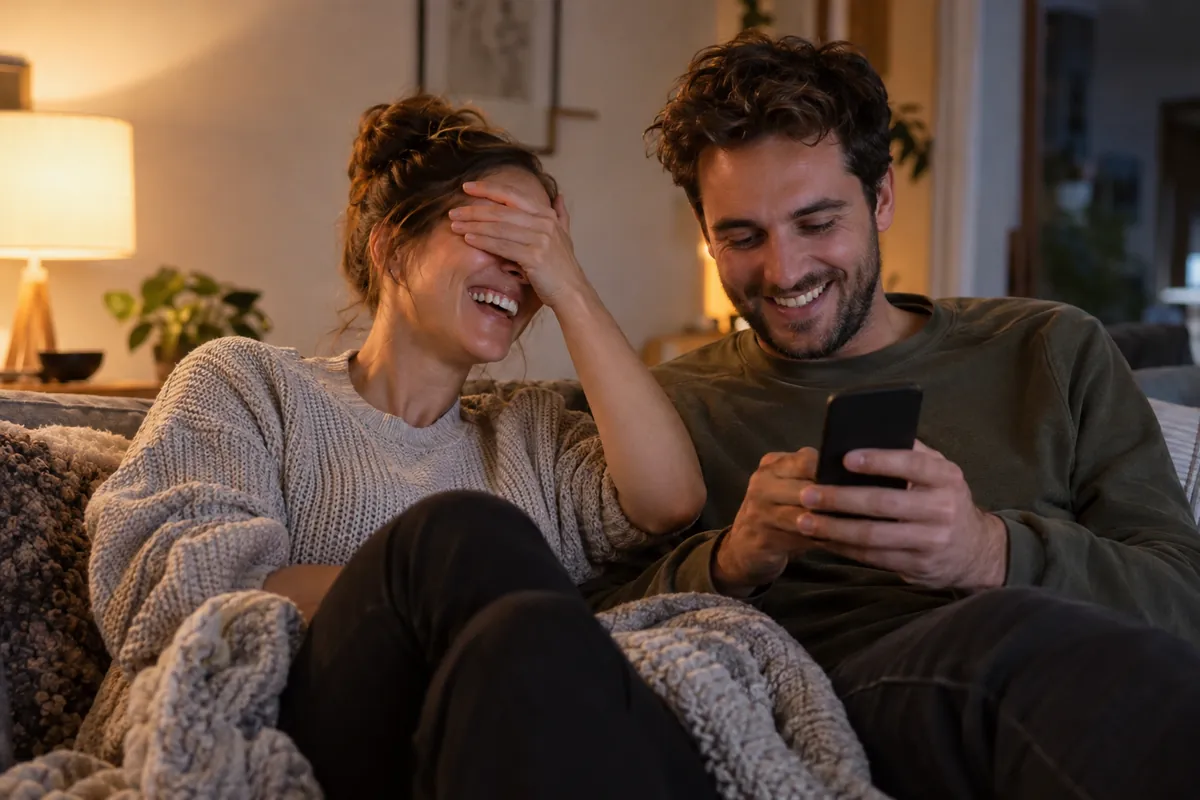
It shows you the problem more than it changes it. In a field study of 242 people, tracking screen time made them more aware of their phone use, but it was unlikely to reduce it. In a follow-up experiment, people preferred tracking to blocking even while rating tracking as less effective, especially the people most dependent on their phones [7]. Watching the number feels like doing something. Often, it isn't.
There's nothing between the reflex and the feed. Screen Time has no pause before an app opens and no limit on a single session. Its limits count the day, and the day is long.
Screen Time is honest about where your time went, and polite about stopping you.
What a screen time app adds
Most screen time apps on the iPhone don't replace Screen Time. They run on it. With your permission, an app can use the same Screen Time system: you pick the apps it should watch, and it puts up the same kind of shield over them when its rules say so. You make that choice in Apple's own picker, which hands the app opaque values instead of your selections, so it can lock "the apps you picked" without ever learning that they're Instagram and TikTok [8].
What changes is who decides what happens at the limit. For Screen Time's own limits, Apple decides. For an app's shield, the app does: some hold until tomorrow, some make you wait or breathe first, some lock a session until it ends.
That decision matters. In a 12-week experiment with about 2,000 American Android users, people offered an app that let them set daily limits on their own phones took it up without any incentive: 78% set limits that actually bit, and kept them to the end, and their time on social media, browsers and YouTube fell by 22 minutes a day, or 16% [9]. From the same data, the economists estimated that self-control problems account for about 31% of social media use [9]. A pause can work too. In a six-week study of the app one sec, people turned back 36% of the times it interrupted them, and their openings of the apps they had chosen fell 57%; one of the authors created the app [10].
Apple Screen Time vs screen time apps, compared
| Tool | Price (US) | What happens at the limit | Free version | App Store rating (US) |
|---|---|---|---|---|
| Apple Screen Time | Free, built in | By default, a limit can be ignored; with a passcode, Downtime can block | Yes | Built into iOS |
| Unrotten | $69.99/yr after a 7-day trial, or $14.99/mo | Apple's shield with no ignore button, until the limit resets or the window ends | No (7-day free trial) | New (October 2026) |
| Opal | Free plan; Pro $99.99/yr, $19.99/mo or $399 once | Blocks on schedules, time limits and opens; Deep Focus can't be bypassed or cancelled | Yes | 4.7 (90K ratings) |
| ScreenZen | Free; optional tips | A wait before chosen apps open; strict blocks if you turn them on | Yes, all features | 4.9 (52K ratings) |
| one sec | Free for 1 app; Pro $19.99/yr, $6.99/mo or $99.99 once | A breathing pause before the app opens; you can still go in | Yes (1 app) | 4.8 (24K ratings) |
Checked October 24, 2026, on the US App Store and each maker's site. Prices change, and the App Store shows the current one before you pay.
Apple Screen Time: best for seeing your numbers
Screen Time is the record: daily and weekly averages, most used apps, pickups and notifications, across your iPhone, iPad and Mac. Its Time Allowances and Schedules (App Limits and Downtime before iOS 27) are good enough for anyone whose limits already hold, or who has someone else to keep the passcode.
Best for: knowing where your time goes, at no cost.
Watch out for: limits that, by default, can be ignored, and a passcode that only works if you don't know it. Share Across Devices needs iOS 27 or later on all your devices [1].
Unrotten: best for limits that hold, with a reason to keep them
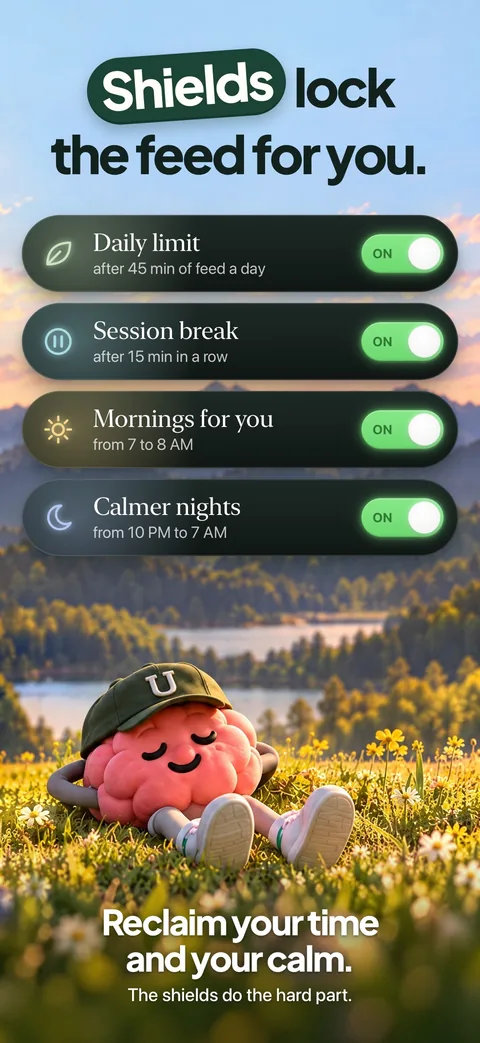
Unrotten uses the same Screen Time shield and changes what happens at the limit. You choose your rot apps, the ones that eat your time, and turn on goals: Less scrolling gives them a daily limit, Shorter scroll sessions sends them on a break once a scroll runs past the length you set, Fewer app returns sets a daily target for how often you open them, and Time away from apps blocks them during the hours you choose. The shield has no "ignore limit" button: it closes the app, and it holds until the limit resets or the window ends. A limit you raise mid-day counts only from tomorrow, so there's nothing to bargain with at 11 p.m.
Around the limits sits the reason to keep them. The MindBattery is a score from 0 to 100, on your Lock Screen and in the Dynamic Island, that drains while you use your rot apps and recharges with sleep, movement, mindful minutes and time away from them. An AI Coach, drawn like iOS Messages, knows your goals and your day (never the names of your apps), sends a morning message, checks in on the plans you share and nudges you when your scrolling runs fast.
Compared with Screen Time: the same kind of shield without the ignore option, plus goals, a score and a coach. It works on your iPhone, where Screen Time can also cover your iPad and Mac.
Best for: people who keep tapping past Screen Time's limits.
Watch out for: there's no free tier: it's $69.99 a year after a 7-day free trial, or $14.99 a month. It's new (on the App Store since October 14, 2026), so it has no ratings yet, and it needs iOS 17 or later. It's a commitment device, not a vault: turning a goal off, or removing Unrotten's Screen Time access, lifts its shield.
Opal: best for strict blocks with a free plan
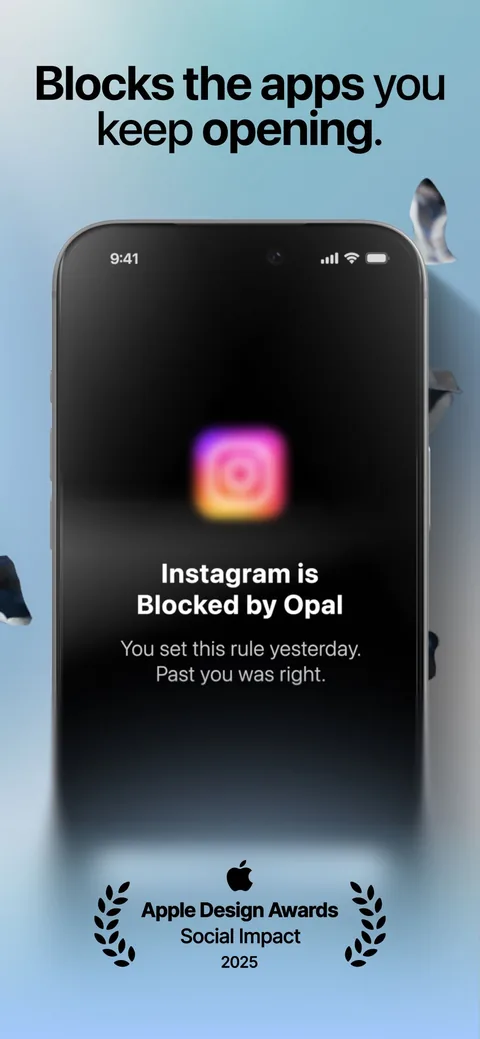
Opal blocks apps through Apple's Screen Time API on schedules, after time limits or after a number of opens, with focus timers and an Opal Score on top. Its strictest setting is the draw: its App Store listing calls Deep Focus "the maximum level of protection" that "you can't bypass or cancel," and its pricing page sums up Hard Mode, on every paid plan, as "No way out." It runs on iPhone (iOS 18 or later), Android and Mac.
Best for: people who want a wall they can't talk their way through.
Watch out for: Opal Pro's $99.99 a year is the highest yearly price here, and it won't run on iPhones that can't update to iOS 18.
ScreenZen: best free option
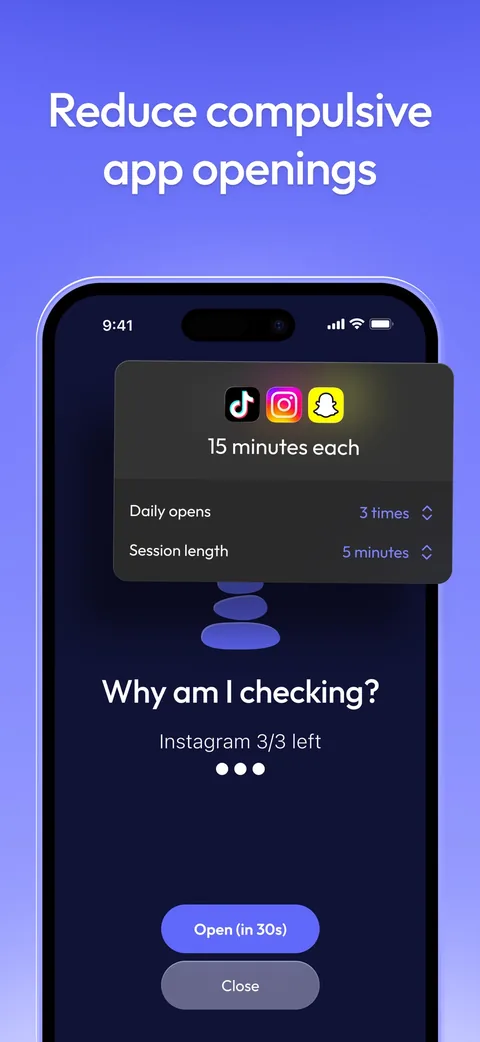
ScreenZen is completely free, supported by optional tips. Before a chosen app opens, you wait, and its listing describes strict blocks by time range, number of opens or screen time, plus locks on its own settings so you can't loosen them the moment you want in. It needs iOS 16.4 or later.
Best for: anyone who wants more than Screen Time without paying.
Watch out for: a wait can be waited out. The strict blocks and settings locks are what hold, and you have to switch them on.
one sec: best for a pause instead of a wall
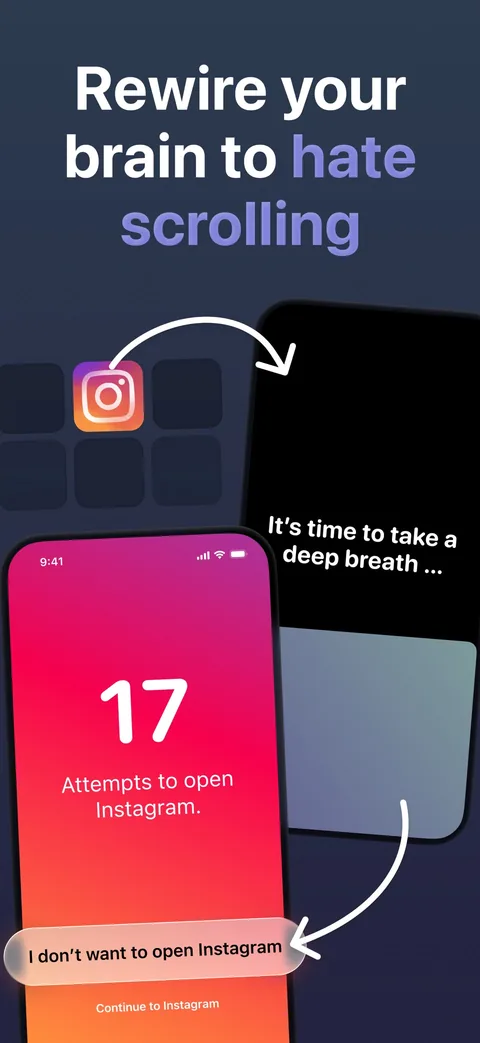
one sec puts a pause between the reflex and the app: when you open one you've chosen, it interrupts with a deep breath, and then you decide whether to go in. Its listing stresses that it delays access to distracting apps instead of blocking them, and it can send you back through the pause after a set time in a long scroll. Its evidence is unusually good for an app, with the caveat above about who ran the study [10]. It's free for one app; Pro is $19.99 a year, $6.99 a month or $99.99 once, and it needs iOS 15 or later.
Best for: the thumb that opens Instagram before you've decided to.
Watch out for: a pause delays you rather than stopping you, by design.
For a longer list, including apps that make you earn your screen time, see our comparison of the best screen time apps for iPhone.
Which one do you need?
Apple's Screen Time on its own is enough if:
- you mostly want to know where your time goes, and the weekly report already nudges you;
- your limits hold, or someone else keeps your Screen Time passcode;
- you'd rather not pay, or give another app Screen Time access.
A screen time app is worth adding if:
- you tap past your limits most evenings;
- your problem is the reflex, the app opened before you decided to, and a pause would catch it;
- one long scroll costs you more than the daily total, and you want a session length;
- you want a reason to stop, such as a goal, a streak or a coach, not only a number.
Most people end up with both. Keep Screen Time's tracking on, because its report is the honest record, and let an app handle the moment of temptation. They don't compete: the app works through Screen Time, with your permission. If tired evenings are where your limits give way, a daily limit in Unrotten holds until the day resets, with nothing to tap past.
Get more out of Screen Time, whichever you choose
- Read the report once a week, not once a day. Note your daily average and the two or three apps at the top; those are the ones to limit first.
- Limit the apps that cost you, not whole categories. A category limit can catch the tools you need along with the feeds you don't.
- Fill Always Allowed first. If Maps and the people you'd call in an emergency are always open, you'll never need to switch a limit off.
- Give your passcode to someone you trust, if you want Apple's limits to hold.
- Try grayscale. In the same trial, a gray screen cut screen time faster than Screen Time's limits did [5]. Our guide to grayscale on iPhone shows how to set it up.
Keep the report, firm up the limit
Apple's Screen Time is the best free record of your phone use you'll get, so leave it on. If its limits hold for you, you may need nothing else. If you keep tapping past them, the fix isn't more willpower at 11 p.m. It's a limit that doesn't ask.
Questions people ask
Is Apple Screen Time enough?
For seeing where your time goes, yes: it's free, built in and far more accurate than your own guesses. For stopping you, often not, because by default its limits can be ignored once reached. If you keep tapping past them, a passcode someone else keeps, or an app with firmer limits, will do more.
Can you ignore Screen Time limits?
Yes, by default. Apple's iOS 26 guide says Screen Time limits can be ignored once reached, and that with a Screen Time passcode you can make Downtime block apps instead. But if you set the passcode yourself, you know it.
Do screen time apps work with Apple's Screen Time?
Apps such as Unrotten and Opal are built on Apple's Screen Time framework. You give them Screen Time access, and Apple hands them the apps you pick as opaque values rather than names, so they can limit those apps without learning which ones they are.
Is Apple Screen Time free?
Yes. It's built into the iPhone, in Settings, and costs nothing. It shows your daily average, most used apps, pickups and notifications, and it can set daily allowances and schedules.
What's the best alternative to Apple Screen Time?
It depends on where you slip. For limits with no ignore button plus goals and a coach, Unrotten. For a free blocker with a wait before apps open, ScreenZen. For a breathing pause, one sec. For strict blocks with a free plan, Opal.
References
- Apple. "Set up Screen Time for yourself on iPhone." iPhone User Guide, iOS 27. Accessed October 24, 2026. support.apple.com ↩
- Ohme J, Araujo T, de Vreese CH, Piotrowski JT. "Mobile data donations: Assessing self-report accuracy and sample biases with the iOS Screen Time function." Mobile Media & Communication. 2021;9(2):293-313. doi:10.1177/2050157920959106 ↩
- Apple. "Set Screen Time Schedules and Time Allowances in Screen Time on iPhone." iPhone User Guide, iOS 27. Accessed October 24, 2026. support.apple.com ↩
- Apple. "Set schedules with Screen Time on iPhone." iPhone User Guide, iOS 26. Accessed October 24, 2026. support.apple.com ↩
- Zimmermann L, Sobolev M. "Digital Strategies for Screen Time Reduction: A Randomized Field Experiment." Cyberpsychology, Behavior, and Social Networking. 2023;26(1):42-49. doi:10.1089/cyber.2022.0027 ↩
- Apple. "Create, change, or remove a Screen Time passcode on iPhone." iPhone User Guide, iOS 27. Accessed October 24, 2026. support.apple.com ↩
- Zimmermann L. "'Your Screen-Time App Is Keeping Track': Consumers Are Happy to Monitor but Unlikely to Reduce Smartphone Usage." Journal of the Association for Consumer Research. 2021;6(3):377-382. doi:10.1086/714365 ↩
- Apple. "FamilyActivityPicker." Apple Developer Documentation, Family Controls. Accessed October 24, 2026. developer.apple.com ↩
- Allcott H, Gentzkow M, Song L. "Digital Addiction." American Economic Review. 2022;112(7):2424-2463. doi:10.1257/aer.20210867 ↩
- Grüning DJ, Riedel F, Lorenz-Spreen P. "Directing smartphone use through the self-nudge app one sec." Proceedings of the National Academy of Sciences. 2023;120(8):e2213114120. doi:10.1073/pnas.2213114120 ↩
Written by
Maren AshbyCOO, Unrotten
Maren Ashby is the COO of Unrotten, the iPhone app that helps people take their attention back from the feed. She writes about the research on phones, sleep and focus, and about the small, practical changes that make a phone easier to put down.