

Blog/Explainer
How to Turn Your Smartphone Into a Dumb Phone, Step by Step
Keep calls, maps, your bank and your camera, and lose the feed: the iPhone settings that make a phone boring, and what the research says they do.

In this article
- Why dumb down the phone you have
- Step 1: Decide what your phone is for
- Step 2: Remove the feeds from your Home Screen
- Step 3: Build one Home Screen of tools
- Step 4: Batch your notifications instead of killing them
- Step 5: Turn the screen grey
- Step 6: Link a Focus to your toolbox page
- Step 7: Lock the apps you can't delete
- Step 8: Charge the phone outside the bedroom
- Step 9 (optional): Try Assistive Access as a true dumb phone mode
- What the research says these changes add up to
- Keep it from creeping back
- A boring phone is a useful phone
You don't need a new phone to get a dumb one. Most of what makes a smartphone hard to put down lives in a handful of apps and settings, and you can strip those out in an afternoon while keeping the parts you depend on: calls, texts, maps, the camera, the code your bank texts you. Here's how to turn an iPhone into a dumb smartphone, one step at a time, and what the research says about it.
Why dumb down the phone you have
Dumb phones are having a moment. A 2024 interview study describes them as increasingly readopted by people looking for a low-distraction phone, for reasons that included mental and physical health, and it found that the switch came with interpersonal complications, because so many government services, businesses and relationships now run through a smartphone [1].
The evidence for the idea itself is good. In a randomized trial, an app blocked all mobile internet on people's phones for two weeks while calls and texts kept working, which made their smartphones dumb in the way that matters, and their attention, mental health and well-being improved [2]. The catch: only about a quarter of the people who signed up kept the block on for at least 10 of the 14 days.
You don't need a different phone. You need fewer reasons to pick this one up.
That's the case for a dumb smartphone: take out the pull, keep the tools, and you have a setup you can live with for months, not days. If you'd rather start over with new hardware, our guide to the best dumb phones compares them.
Step 1: Decide what your phone is for
Write two short lists. Keep: calls, texts, maps, the camera, music or podcasts, your bank and its security codes, payments, rides, tickets, your calendar. Drop: the feeds, short videos, games, news, shopping. Be honest about the middle: email and group chats stay for most people, but without their alerts.
Everything that follows is about making the first list easy and the second one a little harder.
Step 2: Remove the feeds from your Home Screen
Delete the apps on your drop list. Deleting an app doesn't delete your account, and it removes the easiest way back. For apps you can't delete, touch and hold the icon, tap Remove App, then Remove from Home Screen: it moves to the App Library, a swipe and a search away [3].
Two more settings help. Under Settings, then Home Screen & App Library, choose App Library Only, so new downloads stay off your Home Screen. And you can hide whole Home Screen pages: touch and hold an empty spot, tap the dots near the bottom of the screen, and tap the circle under each page you want to hide [3].
Step 3: Build one Home Screen of tools
Put what's left on a single page: Phone, Messages, Maps, Camera, Calendar, Notes, your music app. A plain dark wallpaper helps. When you unlock the phone, it should look like a toolbox, not a magazine rack.

Step 4: Batch your notifications instead of killing them
Turn off notifications for every app that isn't a person: in Settings, tap Notifications, choose the app and turn off Allow Notifications [4].
For the rest, batching beats both extremes. In a randomized field experiment with 237 people, those whose notifications arrived in batches three times a day felt more attentive, more productive, in a better mood and more in control of their phones than people who got them as usual. People who got no notifications at all saw few of those benefits and felt more anxious and more afraid of missing out [5]. Your iPhone has a built-in version of the idea: in Settings, tap Notifications, then Scheduled Summary, pick the times, and choose which apps wait for the summary [4]. Leave Messages and Phone out of it, and texts and calls from people still come through right away.
Step 5: Turn the screen grey
Grayscale takes the candy color out of every icon and thumbnail. It's in the accessibility settings, and you can put it on a shortcut so it's one triple-click away. Our guide to grayscale on iPhone walks through the setup and what the studies found.
Step 6: Link a Focus to your toolbox page
A Focus can switch your phone to a chosen Home Screen page while it's on, allow notifications only from the people and apps you pick, and turn on by itself on a schedule [6]. Make one called "Evening" that shows only your toolbox page from dinner until morning, and the feeds disappear from view at the hour you're most likely to open them.
Step 7: Lock the apps you can't delete
Some apps you need are also the ones that pull you in: the browser, the video app you use for work, the social app your family posts in. Screen Time's App Limits can cap them, but the limit screen offers to ignore it, which is easy on a tired night. Our guide on how to lock apps on iPhone compares the options.
Unrotten locks only the apps you choose, with Apple's Screen Time shield, which has no "ignore limit" button. Less scrolling gives them a daily limit, Shorter scroll sessions puts a break on any session that runs too long, and Time away from apps blocks them during the hours you set, while calls, maps and everything you didn't choose keep working. It's a commitment device, not a safe: turning a goal off lifts its shield, but that takes a decision, not a reflex.
Step 8: Charge the phone outside the bedroom
The last hour of the day is where a smartphone works hardest to stay smart. In a small randomized trial, 38 students who slept poorly and used their phones in bed were split in two: half were asked to stop using the phone 30 minutes before bedtime for four weeks. They fell asleep about 12 minutes faster than before, rated their sleep better and felt less keyed up at bedtime than the group given no instructions [7]. It was a pilot, and the sleep was self-reported, but the change costs nothing.
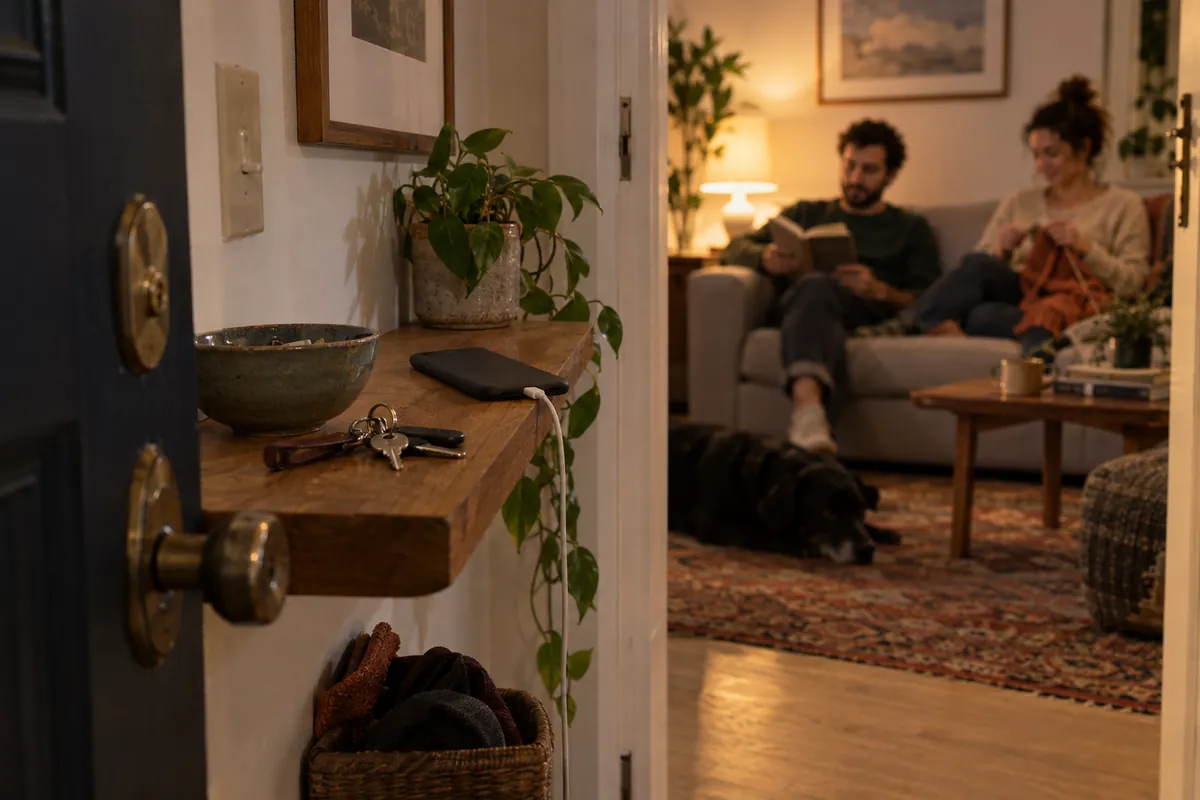
A cheap alarm clock does the one job the phone did in the bedroom.
Step 9 (optional): Try Assistive Access as a true dumb phone mode
Apple designed Assistive Access for people with cognitive disabilities, and it's the closest thing an iPhone has to a dumb phone mode. It replaces the usual interface with a simpler one, with bigger buttons and only the apps you add: Calls, Messages, Camera, Photos and Music come in simplified versions, and most other apps can be added in their normal design [8]. You set it up in Settings, then Accessibility, then Assistive Access, and choose a passcode for entering and leaving it.
To leave, you triple-click the side button (the Home button on older iPhones), tap Exit Assistive Access and enter that passcode; the same triple-click can make an emergency call without it. You also have to leave Assistive Access to download apps, change most settings or update iOS [9]. That friction is the point, but it makes it better for a weekend than for a working day.
What the research says these changes add up to
Each step is small on its own. Together they work. In a randomized trial at McGill University, young adults who were walked through ten such changes (fewer notifications, grayscale, social apps off the Home Screen, the phone out of reach at night) and picked the ones they wanted cut their daily screen time by 57 minutes, against 11 minutes for a group that only tracked theirs. Their problematic phone use fell and their sleep quality improved compared with the control group [10].
The point of a dumb smartphone isn't to use it less on principle. It's to make picking it up a decision again.
Keep it from creeping back
A dumbed-down phone drifts. Apps come back with a new job, a trip or a friend's recommendation, and every new app asks to send you notifications. Once a week, take five minutes: delete what crept back, check the Home Screen is still a toolbox, and look at your Screen Time report.
If you want help holding the line, Unrotten's Coach knows your goals and your day: it sends a morning message, checks in on plans you share with it and nudges you when scrolling runs fast. Your MindBattery score drains while you use the apps you chose and recharges with sleep, movement and time away, and every goal you meet builds a streak.
A boring phone is a useful phone
Start with steps 2 and 4 tonight: the feeds off the Home Screen and the notifications batched. Live with it for a week, then add the rest. The phone will still do everything you need it to. It will just stop asking for your attention every few minutes.
Questions people ask
What is a dumb smartphone?
A smartphone set up to work like a simpler phone: the feeds, games and endless video are deleted, hidden or locked, while calls, texts, maps, the camera and the apps you truly need keep working.
Can you turn an iPhone into a dumb phone?
Mostly, yes, with settings: remove the feed apps from the Home Screen, batch notifications with Scheduled Summary, switch to grayscale, link a Focus to a Home Screen of tools, and lock the apps you can't delete. Apple's Assistive Access goes further, with bigger buttons and only the apps you add.
Is Assistive Access a dumb phone mode?
Apple designed it for people with cognitive disabilities, but it does turn an iPhone into a much simpler phone: only the apps you add, with bigger buttons, and a passcode to leave. You have to exit it to download apps, change most settings or update iOS.
Should I buy a dumb phone or make my smartphone dumb?
If you rely on banking codes, maps, ride apps or group chats, a dumbed-down smartphone is easier to live with. A dumb phone is a firmer commitment. In a trial that blocked mobile internet for two weeks, attention and well-being improved, but only about a quarter of the people who signed up kept the block on for most of it.
Do these changes really reduce screen time?
In a randomized trial, young adults who picked from ten simple changes, such as fewer notifications and grayscale, cut their screen time by 57 minutes a day, against 11 minutes for people who only tracked it.
References
- Rothschild A, Lindqvist J. "Swapping 5G for 3G: Motivations, Experiences, and Implications of Contemporary Dumbphone Adoption." Proceedings of the ACM on Human-Computer Interaction. 2024;8(CSCW1):1-40. doi:10.1145/3637402 ↩
- Castelo N, Kushlev K, Ward AF, Esterman M, Reiner PB. "Blocking mobile internet on smartphones improves sustained attention, mental health, and subjective well-being." PNAS Nexus. 2025;4(2):pgaf017. doi:10.1093/pnasnexus/pgaf017 ↩
- Apple. "Organize the Home Screen and App Library on your iPhone." Apple Support. Accessed October 26, 2026. support.apple.com ↩
- Apple. "Change notification settings on iPhone." iPhone User Guide, iOS 27. Accessed October 26, 2026. support.apple.com ↩
- Fitz N, Kushlev K, Jagannathan R, Lewis T, Paliwal D, Ariely D. "Batching smartphone notifications can improve well-being." Computers in Human Behavior. 2019;101:84-94. doi:10.1016/j.chb.2019.07.016 ↩
- Apple. "Set up a Focus on iPhone." iPhone User Guide, iOS 27. Accessed October 26, 2026. support.apple.com ↩
- He JW, Tu ZH, Xiao L, Su T, Tang YX. "Effect of restricting bedtime mobile phone use on sleep, arousal, mood, and working memory: A randomized pilot trial." PLOS ONE. 2020;15(2):e0228756. doi:10.1371/journal.pone.0228756 ↩
- Apple. "Set up Assistive Access on iPhone." Assistive Access User Guide for iPhone, iOS 27. Accessed October 26, 2026. support.apple.com ↩
- Apple. "Enter and exit Assistive Access on iPhone." Assistive Access User Guide for iPhone, iOS 27. Accessed October 26, 2026. support.apple.com ↩
- Olson JA, Sandra DA, Chmoulevitch D, Raz A, Veissière SPL. "A Nudge-Based Intervention to Reduce Problematic Smartphone Use: Randomised Controlled Trial." International Journal of Mental Health and Addiction. 2023;21(6):3842-3864. doi:10.1007/s11469-022-00826-w ↩
Written by
Maren AshbyCOO, Unrotten
Maren Ashby is the COO of Unrotten, the iPhone app that helps people take their attention back from the feed. She writes about the research on phones, sleep and focus, and about the small, practical changes that make a phone easier to put down.